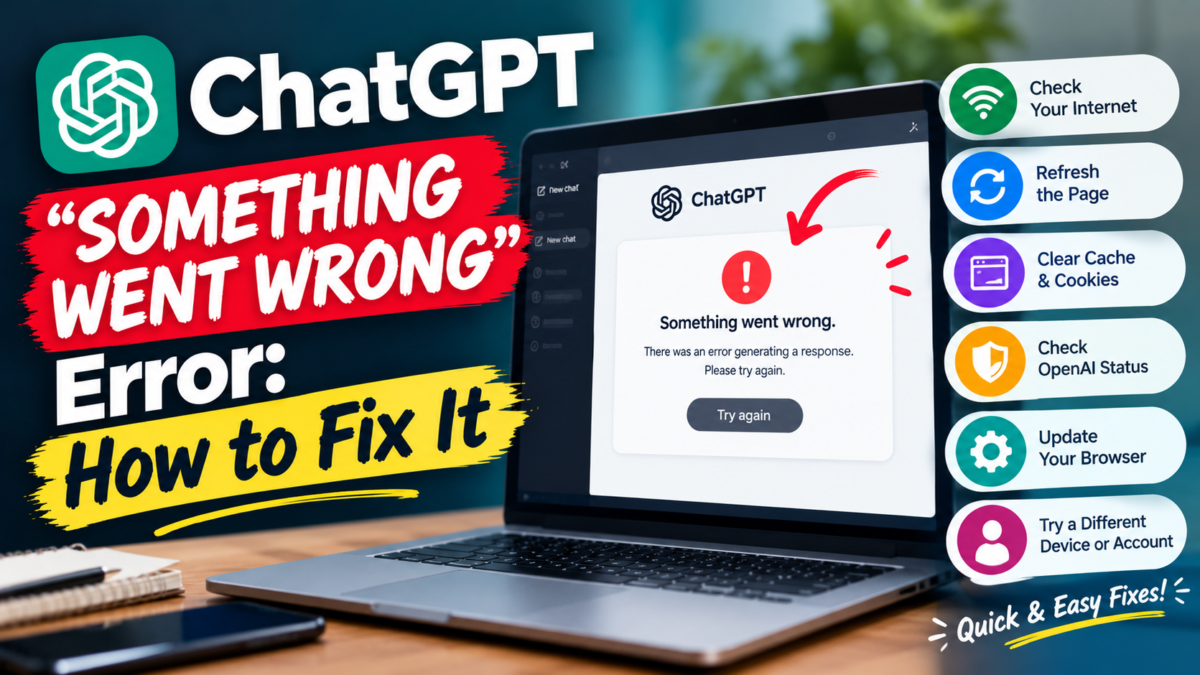
Seeing “Something went wrong” in ChatGPT can be frustrating because the message does not immediately tell you what caused the problem.
The good news is that it is often temporary.
According to OpenAI’s official troubleshooting guidance, the error can be associated with a temporary server-side problem or something in your local setup, such as browser data, extensions, a VPN or network configuration. This is one of several errors covered in our broader guide to why ChatGPT is not working, but here we’ll focus specifically on this message.
Here are the fixes to try.
1. Refresh ChatGPT
Start with the simplest solution.
Refresh the ChatGPT page and try your request again.
If the error appeared while you were using a particular conversation, you can also start a new chat and resend your prompt.
A temporary error may disappear without requiring any other changes.
2. Check Whether ChatGPT Is Down
Before spending time changing browser settings, check OpenAI’s official Status page.
If OpenAI is reporting an active ChatGPT incident, the “Something went wrong” message may be related to a broader service problem.
In that situation, changing your browser or clearing cookies may not solve the underlying issue.
Wait for OpenAI to resolve the incident and try again.
If no relevant incident is reported, continue troubleshooting your browser and network.
3. Try Incognito or Private Browsing
Open ChatGPT in an incognito or private browser window.
Then sign in and try the same request.
This is useful because private browsing can help isolate problems involving existing browser data or extensions.
If ChatGPT works in private mode but continues showing the error in your normal browser session, the problem is more likely related to your browser configuration.
4. Clear Your Browser Cache and Cookies
OpenAI recommends clearing browser cache and cookies when the error persists.
Corrupted or outdated browser data can sometimes interfere with web applications.
After clearing the relevant data:
- Close and reopen the browser.
- Visit ChatGPT again.
- Sign back in if required.
- Start a fresh chat.
- Test whether the error returns.
Remember that clearing cookies may sign you out of websites.
5. Disable Browser Extensions
Browser extensions can interfere with ChatGPT.
Privacy, security, content-blocking and script-modifying extensions are particularly useful to test.
Temporarily disable your extensions and reload ChatGPT.
If the error disappears, re-enable the extensions individually until you identify which one is causing the conflict.
6. Turn Off Your VPN or Proxy
If you use a VPN or proxy, temporarily disable it and try ChatGPT again.
OpenAI specifically recommends testing without VPNs and proxy connections when troubleshooting ChatGPT errors.
A VPN can change the network route between your device and OpenAI’s servers.
If ChatGPT starts working after you disconnect the VPN or proxy, the network configuration was likely contributing to the problem.
7. Disable Secure DNS or Security Filters Temporarily
OpenAI also recommends testing without secure DNS tools or security filters that may interfere with ChatGPT connections.
If you use a security product that filters web traffic, temporarily disabling that feature can help determine whether it is responsible.
Only disable security features temporarily for troubleshooting and restore your preferred security configuration afterward.
8. Switch to Another Network
Try accessing ChatGPT using a different internet connection. For example:
- switch from Wi-Fi to mobile data
- use a mobile hotspot
- try another Wi-Fi connection
If ChatGPT works normally on another network, the original network may be contributing to the error.
This can be particularly relevant on managed workplace, school or corporate networks.
9. Try Another Browser or Device
Open ChatGPT in another modern browser.
If the problem continues, try another device as well.
Testing multiple combinations helps identify where the problem exists. For example:
If ChatGPT fails in Chrome but works in another browser on the same computer, investigate Chrome’s extensions, cookies and settings.
If ChatGPT fails on your computer but works on your phone using the same network, investigate the computer or browser.
If it fails on every device connected to one Wi-Fi network but works on mobile data, investigate the network.
10. What If the Error Appears While Logging In?
A “Something went wrong” message can also appear during login.
OpenAI recommends waiting briefly and trying again, checking the Status page, clearing browser data, using private browsing and testing another browser, device or network.
Also make sure you are using the correct authentication method for your account.
For example, an account originally created with Google, Microsoft, Apple, SSO or another supported authentication method may need the corresponding sign-in method. If you’re unsure which plan your account is on, our guides on whether ChatGPT is free and the differences between ChatGPT Free and Plus can help you confirm.
11. What If the Error Appears in the ChatGPT App?
First close and reopen the app and check your internet connection.
Also make sure the ChatGPT app and your operating system are up to date.
If the error includes a specific message such as DeviceCheckError, follow the troubleshooting instructions for that particular error rather than assuming it is the same generic browser problem.
OpenAI’s DeviceCheck guidance includes checking device date and time, internet connectivity, app/OS updates and device integrity.
12. Why Does “Something Went Wrong” Keep Happening?
If the error repeatedly returns, try to identify a pattern. Ask:
- Does it happen only in one browser?
- Does it disappear in incognito mode?
- Does it happen only when a VPN is enabled?
- Does it happen only on one network?
- Does it happen on multiple devices?
- Is OpenAI reporting an incident?
These tests can help distinguish a local problem from a broader ChatGPT service issue.
13. What If Nothing Fixes It?
If the problem persists across multiple browsers, devices and networks while OpenAI’s Status page does not show a relevant outage, contact OpenAI Support.
OpenAI may ask for diagnostic information for persistent technical issues. Depending on the problem, this could include:
- timestamps
- browser console errors
- the model being used
- conversation URL or ID
- a HAR file
Do not publicly share diagnostic files or account information that may contain private data.
Quick Fix Checklist
Try these steps in order:
- Refresh ChatGPT.
- Start a new conversation.
- Check OpenAI Status.
- Try incognito/private mode.
- Clear cache and cookies.
- Disable browser extensions.
- Turn off VPN or proxy.
- Test without secure DNS/security filters.
- Switch networks.
- Try another browser.
- Try another device.
- Contact OpenAI Support if the problem persists.
Final Answer
The ChatGPT “Something went wrong” message is a general error that can be caused by either a temporary service problem or something in your browser or network setup.
Start by refreshing ChatGPT and checking OpenAI’s official Status page.
If there is no outage, try private browsing, clear browser data, disable extensions and VPNs, and test another browser, device or network.
If the error persists everywhere despite no reported service incident, contact OpenAI Support.
For a full rundown of other common issues, see our guide to why ChatGPT is not working. And if you’re still new to the tool, our beginner’s guide to using ChatGPT is a good place to start.