Summarize a PDF
Get a useful summary and check it against the original.
Get practical help with PDFs, meeting notes and everyday work. Learn the steps, fix problems and compare tools before you choose.
YOUR NEXT TASK, MADE CLEARER
Practical AI guides for documents, meetings and everyday work. Start with a task, follow a guide, then compare your options.
Get a useful summary and check it against the original.
Turn scanned PDFs into editable spreadsheet data.
Check what PDF upload involves before choosing a tool.
Compare free-plan limits for meeting notes.
Explore meeting assistants and their restrictions.
Learn the basics, then try a practical prompt.
Find your way around a general-purpose AI assistant.
Check file limits and common upload problems.
Work through common access and response problems.
Understand which capabilities depend on your account.
Explore Perplexity and ChatGPT for research tasks.
Choose a starting point for your everyday work.
Search the directory, compare tools and save a shortlist in your browser.
Use sources, not just summaries. Check plan limits with the provider before purchasing. Our editorial policy
FROM QUESTION TO FINISHED TASK
Choose a workflow, follow a guide, then check the result before using it in your work.
A summary and a spreadsheet solve different problems. Start with the output you actually need.
Summarize this document in five bullets. Separate facts from your interpretation. Include page references where available. Flag anything unclear and do not invent missing numbers.
This is a suggested prompt, not a tested product result. Check the response against your original document.
Upload failed? Work through the Copilot upload fixes.
Choose how to capture notes before choosing a tool. A meeting bot, a device app and manual notes fit different situations.
Turn these meeting notes into decisions, action items and open questions. For each action, include the owner and deadline only if stated. Otherwise write “not specified.” Do not add commitments that are not in the notes.
Use this with notes you are permitted to share. Review the generated action list before sending it.
OpenAI's conversational AI assistant for writing, research, coding, and general Q&A.
10 articlesAnthropic's AI assistant, built for careful reasoning, writing, and long-document work.
6 articlesGoogle's AI assistant, integrated across Search, Workspace, and Android.
5 articlesMicrosoft's AI assistant, built into Windows, Edge, and Microsoft 365.
4 articlesAn AI-powered answer engine that pairs responses with cited sources.
4 articles AI Tutorials
Learn how to summarize a PDF with Copilot, use focused prompts, check the result and handle scanned documents or poor summaries.
 AI Troubleshooting
Microsoft Copilot file upload failing or the attachment button missing? Check file limits, diagnose browser issues, and troubleshoot unreadable PDFs.
 AI Tools
Microsoft Copilot has a free version. Learn how free chat, file uploads, Microsoft 365 app features and work-account access differ before paying.
 AI Tools
Compare Granola, Jamie and Fathom for bot-free AI meeting notes, including free-plan limits, device support and history restrictions.
 AI Tutorials
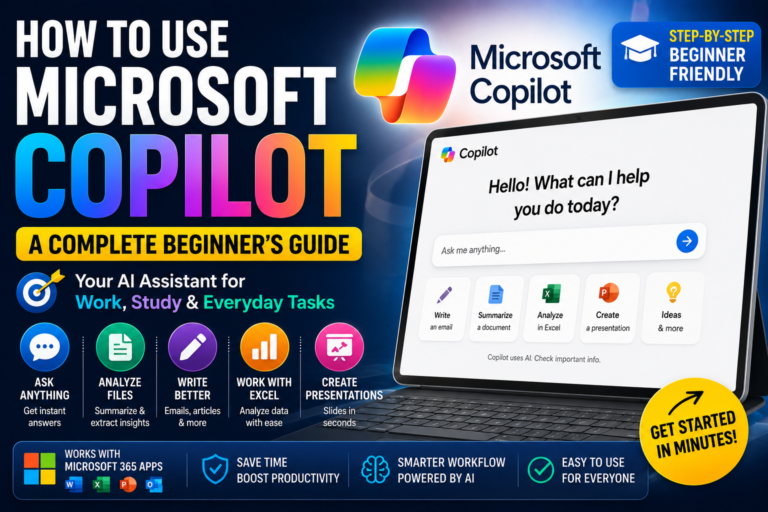
Learn how to use Microsoft Copilot in your browser, write useful prompts, summarize files and understand personal versus work accounts. Includes beginner…
 AI Tutorials
How to Use ChatGPT: A Complete Beginner’s Guide ChatGPT can seem complicated when you first encounter all of its features, but you…
 AI Tools
Can Claude Read PDF Files? Yes. Claude supports PDF uploads and can analyze information contained inside them. This makes Claude useful when…
 AI Comparisons
Compare Otter and Fathom free plans, recording limits, file imports and AI features to choose a meeting note taker that fits your…
 AI Comparisons
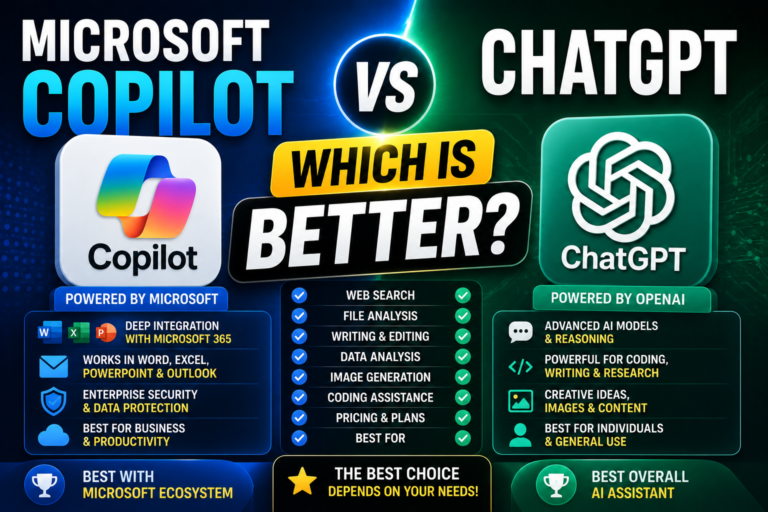
Microsoft Copilot vs ChatGPT Microsoft Copilot and ChatGPT overlap in many areas. Both can help with: But they aren’t identical products. The…
 AI Comparisons
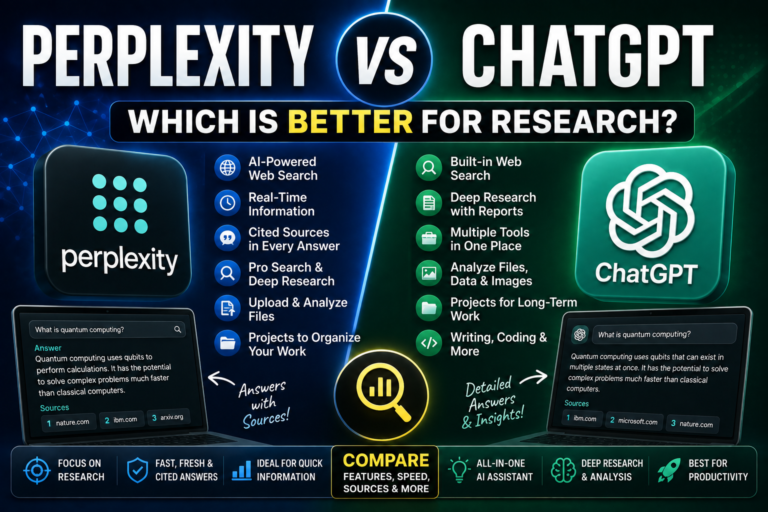
Perplexity vs ChatGPT Both tools can now search the web and provide sources. But they approach the task differently. Perplexity is built…