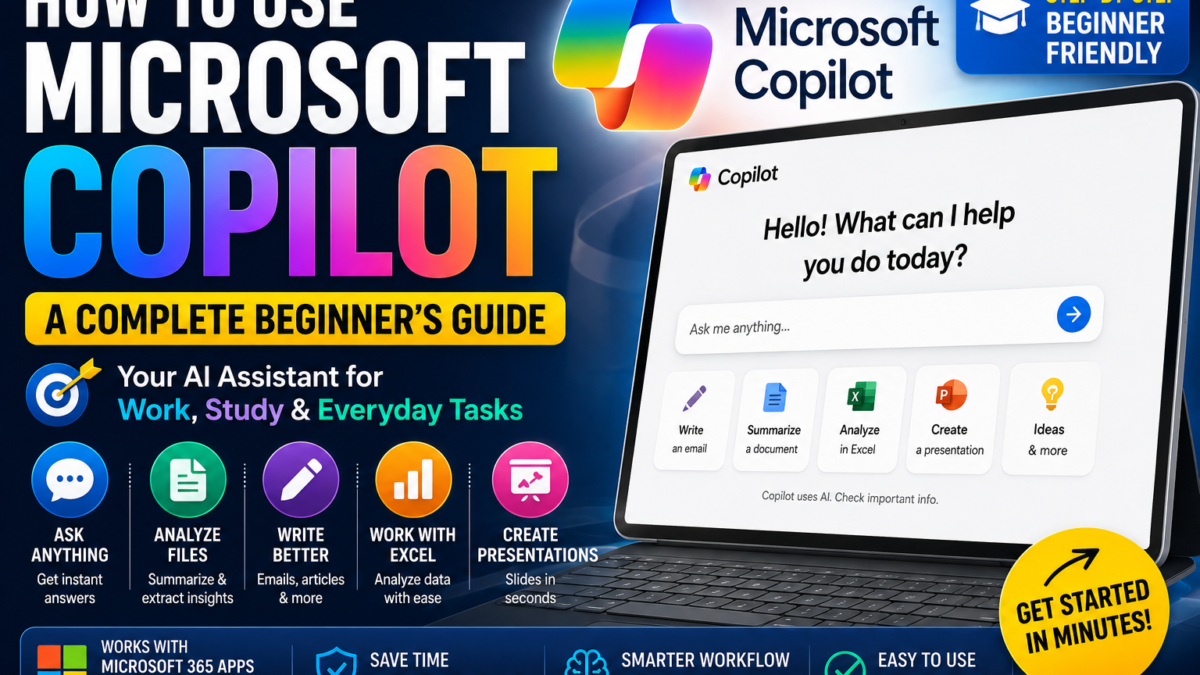
How to Use Copilot in Your Browser
For personal use, open Microsoft Copilot. For work or school, use Microsoft 365 Copilot with your organization account. Available features depend on your account, license and settings.
Start with one clear task in the chat box, send it, read the answer, then ask a follow-up in the same conversation. You do not need to install a desktop app to begin on the web.
Try this example: “Draft a polite email asking a customer to confirm their delivery address. Keep it under 80 words and use placeholders for missing details.” Then ask: “Make it warmer and add a subject line.” Check that the draft does not invent an order number, deadline or customer detail before using it.
These are suggested practice prompts, not a record of a hands-on product test. Setup guidance was checked against Microsoft Support on October 19, 2026.
Choose your next step: Check which Copilot features are free, follow the Copilot PDF summary walkthrough, or troubleshoot file uploads that are not working. For other everyday tasks, start with our AI work guides.
What Is Microsoft Copilot?
Microsoft Copilot is Microsoft’s AI assistant.
You communicate with it using normal language rather than complicated commands.
You can use it for tasks such as:
- Asking questions
- Writing
- Summarizing
- Brainstorming
- Working with documents
- Creating images
- Analyzing information
- Helping with Microsoft 365 work
Microsoft currently provides Copilot experiences for personal users as well as work and school users. Features vary depending on the account and subscription you use.
Step 1: Open Microsoft Copilot
For the consumer Copilot experience, you can use Copilot through:
- A web browser
- Windows
- macOS in supported regions/devices
- iPhone and iPad
- Android
Microsoft says signing in provides additional benefits including chat history, more image creation, longer conversations, and longer voice usage.
Step 2: Ask Your First Question
The instruction or question you give Copilot is called a prompt.
A simple example is:
Explain artificial intelligence to a beginner.
You can also give Copilot a task:
Write a professional email asking a customer to confirm their delivery address.
Or:
Give me 10 ideas for starting an online business.
You don’t need to learn programming to communicate with Copilot.
Step 3: Learn How to Write Better Prompts
Microsoft’s official prompting guidance describes four useful components:
Goal + Context + Expectations + Source
The goal tells Copilot what you want.
The context explains the situation.
Expectations specify how you want the result.
The source tells Copilot what information it should work from when relevant.
For example, instead of:
Write about digital marketing.
Try:
Write a beginner-friendly explanation of digital marketing for small-business owners. Cover SEO, social media, email marketing and paid advertising. Use simple English and keep it under 800 words.
The second prompt gives Copilot much clearer instructions.
Step 4: Continue With Follow-Up Questions
You don’t have to fit everything into one prompt.
After Copilot answers, continue the conversation.
For example:
Make this explanation simpler.
Then:
Give me three examples.
Then:
Put the differences in a table.
Then:
Summarize everything in five bullet points.
This iterative process can produce better results than repeatedly starting new conversations.
Step 5: Use Copilot for Writing
Copilot can help you draft or improve:
- Emails
- Articles
- Reports
- Social media posts
- Product descriptions
- Ideas
- Outlines
- Summaries
For example:
Rewrite this email so it sounds professional but friendly.
Or:
Give me five headline ideas for an article about artificial intelligence.
You can specify the audience and tone to improve the result.
Step 6: Upload and Analyze Files
To ask about a document, select the plus (+) control, choose Add images or files, select your file, and wait until it appears as an attachment. Then send a specific question about its contents.
Example prompt: “Summarize this document in five bullets. Separate stated facts from your suggestions and identify any missing information.” Check the summary against the original file, especially names, dates and numbers.
Microsoft currently lists a 50 MB limit per file and up to 20 files per conversation in its file-upload guidance, checked October 19, 2026. If uploading fails, see our Copilot file upload troubleshooting guide.
Only upload documents you are authorized to share with the service.
You can use files to ask questions such as:
Summarize this document.
What are the most important findings?
Compare these two documents.
Extract the key numbers from this report.
The Microsoft Copilot app also supports creating and working with files, although exact capabilities vary by account and subscription.
Step 7: Create Images With Copilot
Copilot can turn text descriptions into images.
For example:
Create an illustration of a futuristic eco-friendly city at sunset.
Better prompts specify:
- Subject
- Environment
- Style
- Lighting
- Composition
- Aspect ratio or intended use
For example:
Create a realistic landscape image of a modern eco-friendly city at sunset, with rooftop gardens, electric vehicles and warm cinematic lighting.
Step 8: Use Copilot With Word
Copilot becomes especially useful for Microsoft 365 users.
In supported Microsoft 365 experiences, Copilot can assist with drafting and editing documents in Word. Microsoft describes Copilot across Microsoft 365 as working directly inside apps people already use.
You might ask it to:
Create a first draft from these notes.
Or:
Rewrite this section for a business audience.
Step 9: Use Copilot With Excel
Copilot can also assist with spreadsheet-related work in supported Microsoft 365 plans.
It can help users understand data, work with formulas, and derive insights using natural-language requests.
For example:
Analyze this sales data and identify the strongest-performing months.
This can make Excel more approachable for users who aren’t spreadsheet experts.
Step 10: Use Copilot With PowerPoint
Copilot can assist with presentation creation.
For example, you could begin with an outline and ask Copilot to help turn it into a presentation.
This can be useful for:
- Business presentations
- Training
- School projects
- Reports
- Sales presentations
Step 11: Use Copilot With Outlook
In supported Microsoft 365 environments, Copilot can also help with email workflows.
Examples include summarizing email information and drafting replies.
For users who spend much of their working day in Microsoft 365, this integration is one of Copilot’s biggest advantages.
Step 12: Understand Personal vs Work Copilot
This distinction is important.
Your Copilot experience changes depending on the account you use.
A personal Microsoft account gives you the consumer experience.
A work or school Microsoft Entra account can provide organizational features and protections depending on the organization’s licenses and settings.
Microsoft 365 Copilot can incorporate work content that a user has permission to access, such as relevant email, files, and chats.
Step 13: Check Copilot’s Answers
Copilot can make mistakes.
Never assume an AI-generated answer is correct simply because it sounds confident.
Verify important:
- Medical information
- Legal information
- Financial information
- Statistics
- Current prices
- Academic references
- Technical specifications
AI should assist your judgment rather than replace reliable primary sources.
10 Microsoft Copilot Prompts for Beginners
Explain [topic] to me as a complete beginner using simple examples.Rewrite this email professionally without making it too formal: [text]Summarize this document and give me the five most important points.Create an outline for a presentation about [topic].Analyze this spreadsheet and explain the major trends in simple language.Give me 10 ideas for [topic] and rank the strongest three.Turn these notes into a professional report.Create an image of [subject] in [style] with [lighting/background].Review your previous answer and identify anything that needs verification.Explain the advantages and disadvantages of [topic] in a comparison table.
Common Beginner Mistakes
Avoid writing prompts that are too vague.
Don’t expect the first response to always be perfect.
Don’t copy important information without checking it.
And don’t assume every Copilot feature is included with every account—the available features can vary considerably between personal, Microsoft 365, business, and organizational experiences.
Final Verdict
Microsoft Copilot is straightforward for beginners: open Copilot, give it a clear instruction, review the answer, and refine it through follow-up prompts.
Its greatest advantage becomes clearer for people already using Microsoft products.
If Word, Excel, PowerPoint, Outlook, Windows, and Microsoft 365 are already central to your workflow, Copilot can bring AI assistance directly into that environment.
New to Copilot? Learn what Microsoft Copilot is and how it works. See how it compares to ChatGPT.