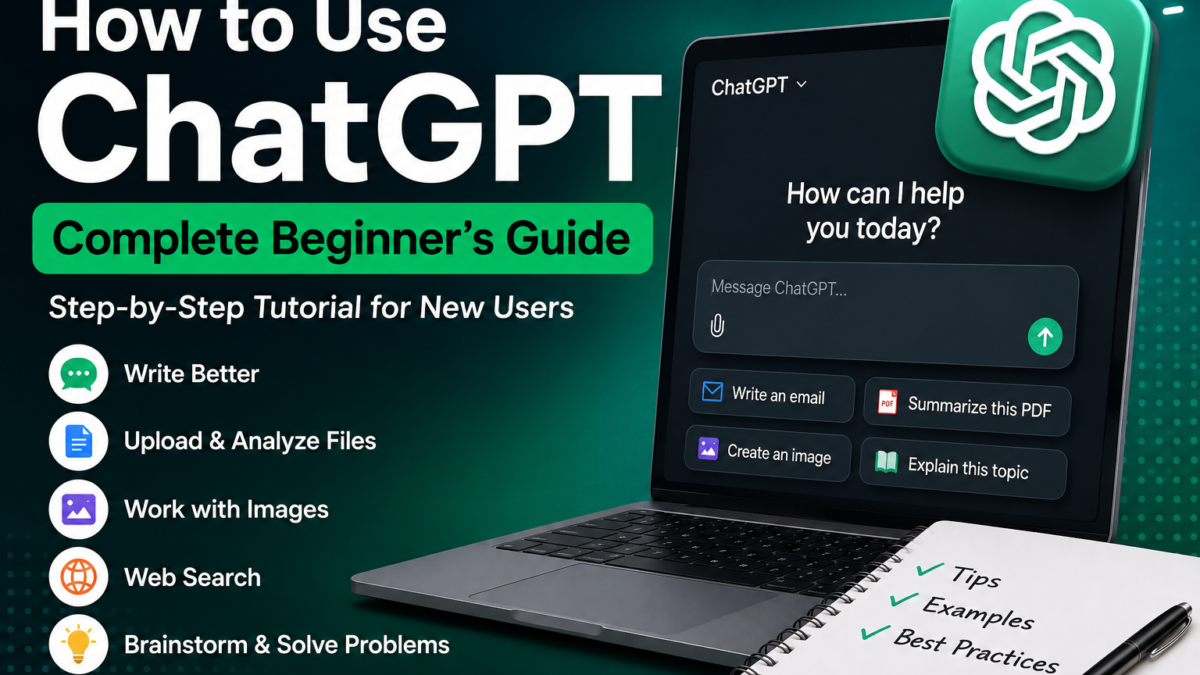
How to Use ChatGPT: A Complete Beginner’s Guide
ChatGPT can seem complicated when you first encounter all of its features, but you don’t need to understand artificial intelligence to start using it.
At its simplest, ChatGPT works like a conversation.
You tell it what you need, it responds, and then you can continue the conversation until you get a useful result.
You might ask ChatGPT to explain something, write an email, summarize information, brainstorm ideas, help with homework, analyze a document, generate an image, research a topic, or solve a problem.
OpenAI describes a prompt as the question or instruction you give ChatGPT. A prompt doesn’t necessarily have to be text—it can also involve other inputs such as images, audio, or files in supported experiences.
This guide explains how beginners can start using ChatGPT effectively.
Step 1: Open ChatGPT
Start by opening ChatGPT on the web or through its official mobile app.
OpenAI currently provides ChatGPT on the web as well as iOS and Android. In supported regions, it may even be possible to try ChatGPT on the web before creating an account.
Creating and signing into an account provides a more complete experience, including the ability to retain conversations and use account-based features.
Once ChatGPT opens, you’ll see an area where you can enter a message.
That’s where your first prompt goes.
Step 2: Ask Your First Question
You don’t need to learn special commands before using ChatGPT.
Simply write what you want.
For example:
Explain how solar panels work in simple English.
Then send the message.
ChatGPT will generate an answer based on your request.
You can ask extremely simple questions:
What is artificial intelligence?
Or practical questions:
Give me five dinner ideas using chicken and rice.
Or ask it to create something:
Write a professional email asking a customer to confirm their delivery address.
The important thing is to explain what you actually want.
OpenAI recommends making prompts clear and specific and providing enough context for ChatGPT to understand the task.
Step 3: Learn How to Write Better Prompts
A prompt is the instruction or question you give ChatGPT.
Your prompt has a major influence on the response you receive.
Consider this prompt:
Write about exercise.
ChatGPT can respond, but it doesn’t know exactly what you need.
A better prompt would be:
Write a 500-word beginner-friendly article explaining five benefits of regular exercise. Use simple English, short paragraphs and clear headings.
Now ChatGPT knows:
- The subject
- Desired length
- Intended audience
- Writing style
- Required structure
OpenAI’s current prompting guidance recommends being clear and specific, giving relevant context, and refining your request based on the initial result.
A Simple Prompt Formula
Beginners can use this formula:
Task + Context + Requirements + Output Format
For example:
Task: Write an email.
Context: I ordered a laptop five days ago and haven’t received it.
Requirements: Be polite but firm.
Output: Keep the email under 150 words.
Combined:
Write a polite but firm email to an online store. I ordered a laptop five days ago and haven’t received it. Ask them for a delivery update and keep the email under 150 words.
This gives ChatGPT much more useful direction.
Step 4: Ask Follow-Up Questions
You don’t have to put everything into one enormous prompt.
ChatGPT works conversationally.
Suppose you ask:
Explain SEO to a beginner.
After receiving the answer, you could say:
Explain it with an example.
Then:
Now give me a checklist.
Then:
Turn that checklist into a weekly SEO plan.
ChatGPT can use context from earlier messages in the same conversation, allowing you to progressively refine the result. OpenAI specifically recommends iterative prompting—review the initial answer, then adjust your instructions or add more context.
This is one of the most useful habits for beginners.
Don’t expect every first response to be perfect.
Treat ChatGPT like a conversation.
Step 5: Tell ChatGPT Who the Answer Is For
Audience makes a major difference.
Compare:
Explain black holes.
with:
Explain black holes to a 10-year-old using simple examples.
Or:
Explain black holes to a university physics student.
The subject is identical, but the appropriate explanation is completely different.
You can specify audiences such as:
- Beginner
- Child
- Student
- Customer
- Business owner
- Programmer
- Teacher
- Expert
You can also specify a desired tone.
For example:
Rewrite this in a friendly and professional tone.
OpenAI’s prompting guidance specifically recommends describing the tone you want, such as professional, friendly, formal, humorous, or serious.
Step 6: Use ChatGPT for Writing
Writing is one of ChatGPT’s most straightforward uses.
You can ask it to help create:
- Emails
- Articles
- Social media captions
- Product descriptions
- Video scripts
- Letters
- Reports
- Outlines
- Headlines
- Ideas
You don’t always have to ask ChatGPT to write something from scratch.
You can provide your own writing and ask it to improve it.
For example:
Rewrite this email to sound more professional without changing its meaning.
Or:
Correct the grammar in this paragraph and explain my mistakes.
Or:
Make this product description easier to understand.
This makes ChatGPT useful as both a writing assistant and an editing assistant.
Step 7: Use ChatGPT for Learning
ChatGPT can also act as an interactive learning assistant.
You could ask:
Teach me the basics of Excel.
Then continue:
Give me a practice exercise.
And later:
Test me with five questions but don’t show the answers until I respond.
OpenAI lists studying and explanations among ChatGPT’s everyday uses.
You can also change the difficulty:
Explain photosynthesis at beginner level.
Then:
Now explain it at university level.
This ability to adapt explanations can be useful when you’re learning an unfamiliar subject.
However, ChatGPT can make mistakes, so important educational facts should still be verified against reliable sources.
Step 8: Upload Files to ChatGPT
ChatGPT can work with uploaded documents and data in supported plans and experiences.
OpenAI documents use cases including analyzing spreadsheets, comparing documents, summarizing research papers, extracting sections from files, finding references to particular topics, and rewriting document content.
For example, upload a PDF and ask:
Summarize this PDF in 10 bullet points.
Or:
Find every section of this document that discusses pricing.
You could upload two documents and ask:
Compare these documents and create a table showing their main differences.
You can also work with spreadsheets:
Analyze this spreadsheet and explain the most important trends.
Current file availability and limits depend on the account and feature being used, so check OpenAI’s documentation rather than relying on old upload-limit figures.
Step 9: Use ChatGPT With Images
ChatGPT can also work with images.
You might upload:
- A screenshot
- Photograph
- Diagram
- Chart
- Product image
- Document image
Then ask questions about it.
For example:
Explain this chart in simple language.
Or:
What does this error message mean?
ChatGPT’s current capabilities include analyzing images and files, while supported experiences can also create images from natural-language instructions.
That means ChatGPT isn’t limited to text conversations.
Step 10: Ask ChatGPT to Create Images
You can describe an image you want ChatGPT to create.
For example:
Create a realistic image of a modern coffee shop on a rainy evening.
A more detailed prompt could be:
Create a realistic wide image of a modern coffee shop at night. Show warm interior lighting, large glass windows, rain outside and a cinematic atmosphere.
Details such as composition, setting, lighting, mood and intended use can help guide the result.
OpenAI currently includes image creation among ChatGPT’s built-in capabilities.
Step 11: Use ChatGPT for Current Information
Some ChatGPT experiences can search the web to retrieve current information.
This is important because not every question should be answered only from a model’s existing knowledge.
For example, you might ask about:
- Recent technology news
- Current product information
- Recent research
- Current events
- Updated documentation
When ChatGPT searches the web, check the cited sources if accuracy matters.
This is particularly important when information changes frequently.
OpenAI lists web search as a ChatGPT tool for bringing current information into conversations with citations.
Step 12: Organize Longer Work With Projects
If you repeatedly use ChatGPT for the same subject, Projects can help keep your work organized.
A Project can keep related chats, files and project-specific instructions together.
For example, you could create:
Website Project
and add:
- Website plans
- Research documents
- Content guidelines
- Previous drafts
Then create multiple related conversations inside that Project.
OpenAI says Projects are available across free and paid subscription types and are designed for repeated or evolving work such as writing, research and planning.
This is much more convenient than explaining the same background from scratch in every new conversation.
Step 13: Check Important Information
One of the most important things every beginner should understand is:
ChatGPT can be wrong.
A response can sound confident and still contain inaccurate information.
You should be especially careful with:
- Medical information
- Legal information
- Financial decisions
- Academic citations
- Current prices
- Statistics
- Important dates
- Technical configurations
Use ChatGPT to help you understand and investigate information, but verify important claims using trustworthy primary sources.
For current topics, ask ChatGPT to search the web and provide sources where appropriate.
Step 14: Protect Private Information
Think carefully before entering sensitive information into any online AI service.
Avoid unnecessarily sharing things such as passwords, authentication codes, payment-card information, or confidential information that doesn’t need to be included in your request.
Often, ChatGPT doesn’t need the real information to help.
Instead of:
Write an email about customer John Smith with account number 123456789.
You can write:
Write a customer-service email about a customer’s account issue.
Then replace placeholders yourself afterward.
This is a useful general habit whenever you’re using online AI tools.
10 Useful ChatGPT Prompts for Beginners
Here are some prompts you can try immediately:
1. Learning
Explain [topic] to me as a complete beginner. Use simple language and three real-world examples.
2. Writing
Rewrite the following text to make it clear, concise and professional: [paste text]
3. Email
Write a polite professional email about [situation]. Keep it under 150 words.
4. Summarization
Summarize the following information into five key points and explain why each point matters: [paste text]
5. Brainstorming
Give me 20 ideas for [topic]. Group them into five categories.
6. Comparison
Compare [option A] and [option B]. Create a table showing advantages, disadvantages, cost and best use cases.
7. Studying
Teach me [topic] step by step. After each section, ask me one question to check my understanding.
8. Planning
Create a seven-day plan to help a beginner learn [skill]. Give me one practical task each day.
9. Document Analysis
Analyze this uploaded document. Give me the main points, important numbers, possible problems and five questions I should ask about it.
10. Improve a Result
Review your previous answer. Identify anything unclear, unsupported or missing, then give me an improved version.
Common ChatGPT Mistakes Beginners Make
A common mistake is using extremely vague prompts and expecting a highly specific result.
Another is abandoning the conversation after the first response.
Instead, refine the result.
If it’s too long:
Make it shorter.
If it’s too technical:
Explain it in simpler English.
If it lacks examples:
Give me three real-world examples.
If you want a different structure:
Convert this into a table.
If something seems questionable:
Which parts of this answer should I verify, and what primary sources should I check?
OpenAI’s own prompting recommendations emphasize clear instructions and iterative refinement rather than trying to create one supposedly perfect prompt.
Is ChatGPT Free to Use?
Yes. ChatGPT has a free offering, while OpenAI also provides paid subscription plans.
You don’t need to purchase a subscription simply to begin learning how ChatGPT works.
The specific models, tools and usage allowances available on different plans can change, so check current plan information before paying based on a particular feature.
For more detail, FaqsNow readers can continue to:
Is ChatGPT Free?
Final Verdict
Using ChatGPT doesn’t require technical expertise.
Start by telling it clearly what you want. Add relevant context, specify your preferred format or tone, review the result, and use follow-up prompts to improve it.
Once you’re comfortable with ordinary conversations, you can explore more advanced capabilities such as files, images, web search and Projects. OpenAI’s current beginner guidance similarly recommends starting with a simple prompt and then refining the conversation through follow-up questions and additional detail.
The most important skill isn’t memorizing complicated prompts.
It’s learning to describe your goal clearly and work with ChatGPT iteratively until the output meets your needs.
Not sure which plan to pick first? Check whether ChatGPT is free and how Free compares to Plus. Considering other AI assistants? See how ChatGPT compares to Claude, Gemini, and Perplexity.
Running into errors while you learn? See our guide on how to troubleshoot ChatGPT if it stops loading, freezes, or shows an error message.
Seeing a specific “Something went wrong” message? Here’s how to fix ChatGPT errors like this one.
Want to know what’s new? GPT-6 Astra is currently the latest ChatGPT model, with improvements in computer use, coding and research.
Want to see how ChatGPT stacks up against other options for creating visuals? Our guide to the best free AI image generators compares it with Gemini, Canva, Firefly and more.