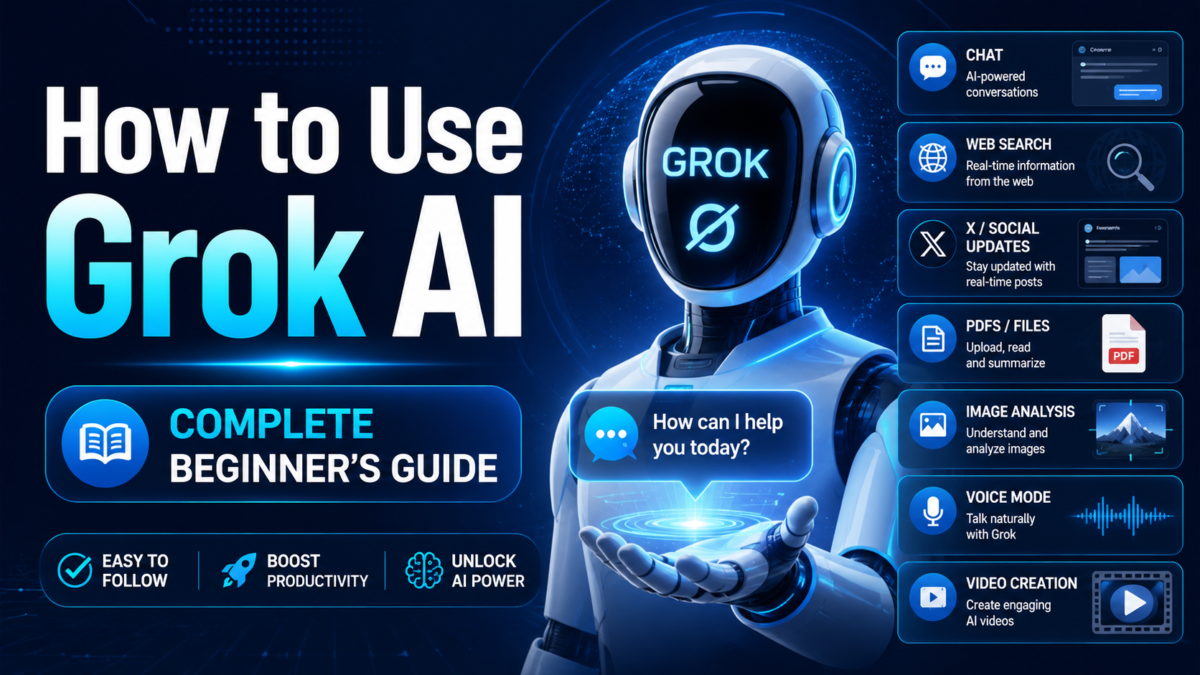
How to Use Grok AI
Grok is relatively easy to start using.
You don’t need programming knowledge.
The basic process is:
Open Grok → enter a prompt → review the answer → continue with follow-up instructions.
Once you understand basic chatting, you can explore Grok’s more advanced tools.
Step 1: Open Grok
Go to:
Grok is also available through iOS and Android apps.
Sign in so your conversations, settings and subscription can sync across supported devices.
Step 2: Ask Your First Question
Type a simple question.
For example:
Explain artificial intelligence in simple English.
Or:
Give me five business ideas that can be started online.
Or:
Write a professional email asking for a refund.
Grok will generate an answer.
Step 3: Write a Better Prompt
More detail usually produces a more useful result.
Instead of:
Write about SEO.
Try:
Explain SEO to a beginner who owns a small online store. Cover keywords, on-page SEO, backlinks and technical SEO. Use simple English and practical examples.
A useful formula is:
Task + Context + Requirements + Output Format
For example:
Compare ChatGPT and Grok for a beginner. Focus on web search, images, video, files and pricing. Present the result in a simple table.
Step 4: Ask Follow-Up Questions
Continue the conversation instead of starting again.
After an answer, try:
Explain point three in more detail.
Then:
Give me an example.
Then:
Make it easier to understand.
Then:
Summarize the final answer in five bullets.
Grok supports contextual threads and follow-up conversations.
Step 5: Search the Web
One of Grok’s major strengths is current information.
You could ask:
Search the web for the latest developments in AI video generation and summarize the most important changes.
xAI lists real-time web search as a core Grok feature.
When accuracy matters, inspect the original sources rather than relying only on Grok’s summary.
Step 6: Search X
Grok’s integration with X makes it particularly useful for exploring live social-media information.
For example:
What are people discussing on X about the latest AI model announcement?
Or:
Find recent X discussion about this product launch and summarize the main reactions.
xAI specifically advertises live X integration for breaking news, trends and posts.
Remember that X posts can contain rumors or misinformation.
Social-media reactions should not be treated as verified facts.
Step 7: Upload a PDF
Grok supports file uploads including PDFs.
Upload your document and ask:
Summarize this PDF in 10 bullet points.
Or:
What are the main conclusions?
Or:
Find all pricing information in this document.
This can be useful for reports, research papers, manuals and business documents.
Step 8: Upload Images
Grok can understand images.
You can upload:
- Screenshots
- Photos
- Charts
- Diagrams
Then ask:
Explain this chart.
Or:
What does this error message mean?
Or:
Describe the important objects in this image.
xAI lists vision understanding as a current Grok capability.
Step 9: Generate Images With Grok Imagine
Grok Imagine can create images from text prompts.
For example:
Create a realistic image of a futuristic electric motorcycle parked on a rainy Tokyo street at night.
For better results, specify:
- Subject
- Environment
- Style
- Camera angle
- Lighting
- Mood
Step 10: Create Videos
Grok Imagine also supports video generation.
xAI currently advertises text-to-video generation, while higher paid plans can provide greater usage or quality options.
For example:
Create a cinematic video of a futuristic electric car slowly emerging from a high-tech showroom, realistic reflections and smooth camera movement.
For AI video, describe movement, not only appearance.
Step 11: Use Voice
Grok supports voice conversations.
This allows you to speak naturally instead of typing every prompt.
Voice can be useful for:
- Brainstorming
- Practicing language
- Asking questions while walking
- Hands-free conversations
Step 12: Use Grok for Coding
You can ask Grok to:
- Write code
- Debug code
- Explain functions
- Explain errors
- Suggest improvements
Example:
Explain this JavaScript code line by line to someone who is learning programming.
Or:
Find the bug in this Python function and explain how to fix it.
xAI lists code generation and debugging among Grok’s capabilities.
Never deploy important AI-generated code without reviewing and testing it.
Step 13: Use Grok for Current News
Grok’s combination of web and X information makes it useful for fast-moving topics.
But use it carefully.
For example, instead of:
What happened?
Ask:
Explain what happened using reliable primary sources. Separate confirmed facts from claims circulating on X.
That wording can help distinguish reporting from social-media discussion.
Step 14: Understand Grok’s Free and Paid Access
You can start with Grok for free.
xAI currently lists:
Free — $0/month
with real-time web/X search and other features subject to usage limits.
Paid SuperGrok tiers increase usage and unlock additional capabilities.
Because limits and pricing can change, check xAI’s live pricing page before upgrading.
Step 15: Verify Important Information
Web access doesn’t make an AI assistant automatically correct.
Grok can still make mistakes.
Always verify important:
- News claims
- Health information
- Financial information
- Legal information
- Statistics
- Prices
- Product specifications
For breaking news, distinguish between confirmed reporting and what people are saying on X.
10 Useful Grok Prompts
Research:Research [topic] using current reliable web sources and summarize the findings.
X trends:What are the main discussions on X about [topic]? Separate opinion from verified facts.
PDF:Analyze this PDF and give me the 10 most important findings.
Image:Analyze this image and explain what is happening.
Coding:Debug this code and explain every change you make.
Image creation:Create a photorealistic image of [subject], with [environment], [lighting] and [camera angle].
Video:Create a cinematic video of [subject performing action], with smooth camera movement and realistic lighting.
Learning:Teach me [topic] as a beginner using simple examples.
Comparison:Compare [A] and [B] using current information and put the result in a table.
Verification:Review your answer, identify claims that need verification, and find primary sources for them.
Common Beginner Mistakes
Don’t assume everything found on X is factual.
Don’t use vague prompts when you need a specific output.
Don’t upload confidential files without considering privacy.
Don’t assume AI-generated code is production-ready.
And don’t confuse real-time information with guaranteed accuracy.
Final Verdict
Grok combines traditional AI-chat capabilities with live web/X information and multimodal creation.
Beginners can start with simple questions and gradually move into:
search → files → images → coding → voice → image generation → video generation.
Its X integration makes it particularly distinctive for current events and social-media research, while Grok Imagine expands it into creative AI workflows.
New to Grok? Learn what Grok AI is and how it works before diving in.